
Instruction manual
How to use the Deadline Dashboard
It does one job: it keeps track of what the kitchen owes, who owes it, and when — and it chases people by email so you don't have to. There is no password to remember and nothing to install.
The one-minute version
- Every morning at 6:00 am you get one email listing what's yours.
- Tap Mark done in that email. That's it — nothing else to do.
- Anything not done keeps showing up until it is.
- Open the site any time to see the whole department's list.
Everything below is detail. If you only read the four lines above, you can use this.
1 Signing in
There is no password. You type your work email, and the system emails you a link that signs you in.
Use your real work email — the one ending @oakviewgroup.com. If you type an address that isn't on the roster, the screen still says "Check your email" but nothing will ever arrive. That is deliberate (it stops strangers fishing for who works here), but it means a typo looks exactly like success. If no email turns up in a couple of minutes, check the address on the confirmation screen against your own, character for character.
- The link works once, and expires after 30 minutes.
- Asked for more than 5 links in an hour? The system quietly stops sending. Wait a bit.
- Already used the link and need back in? Just request another.
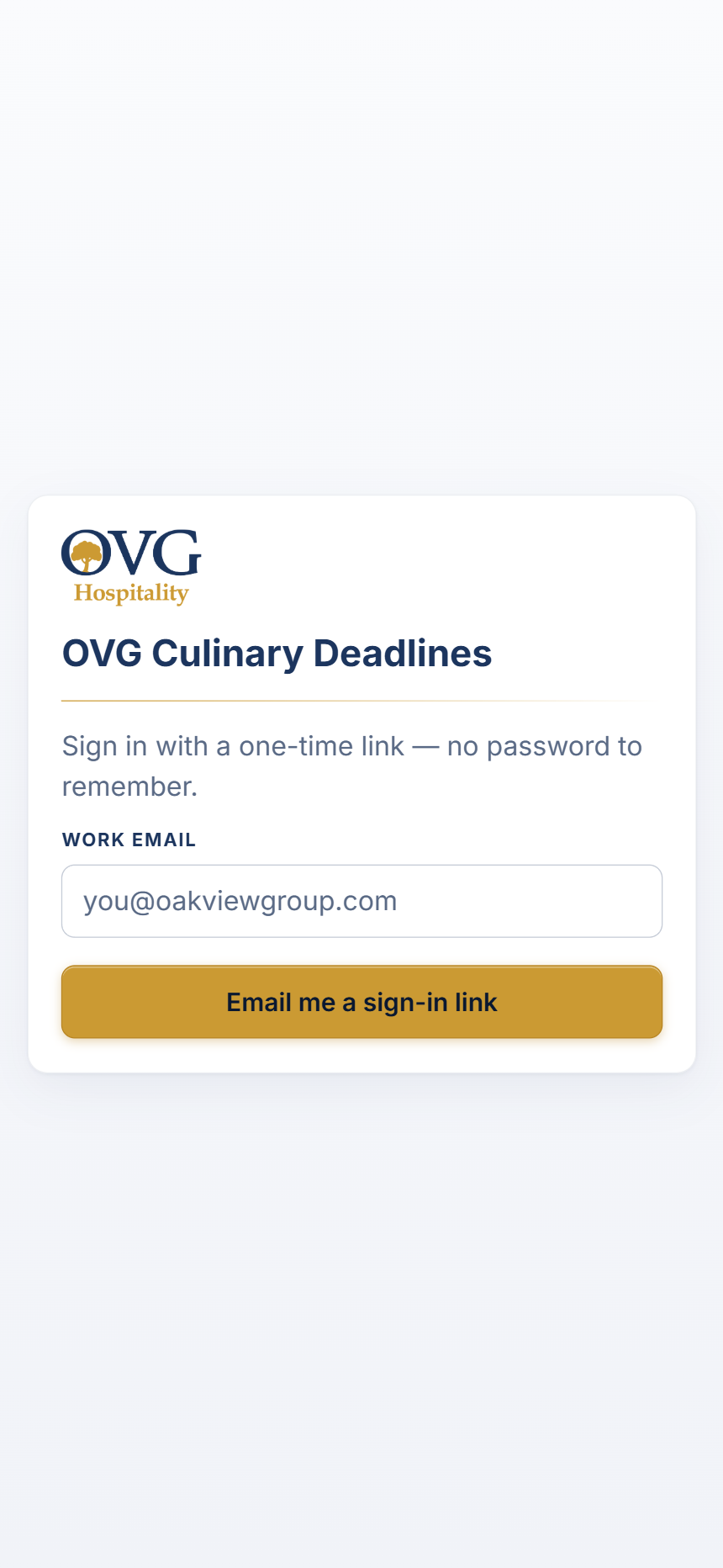
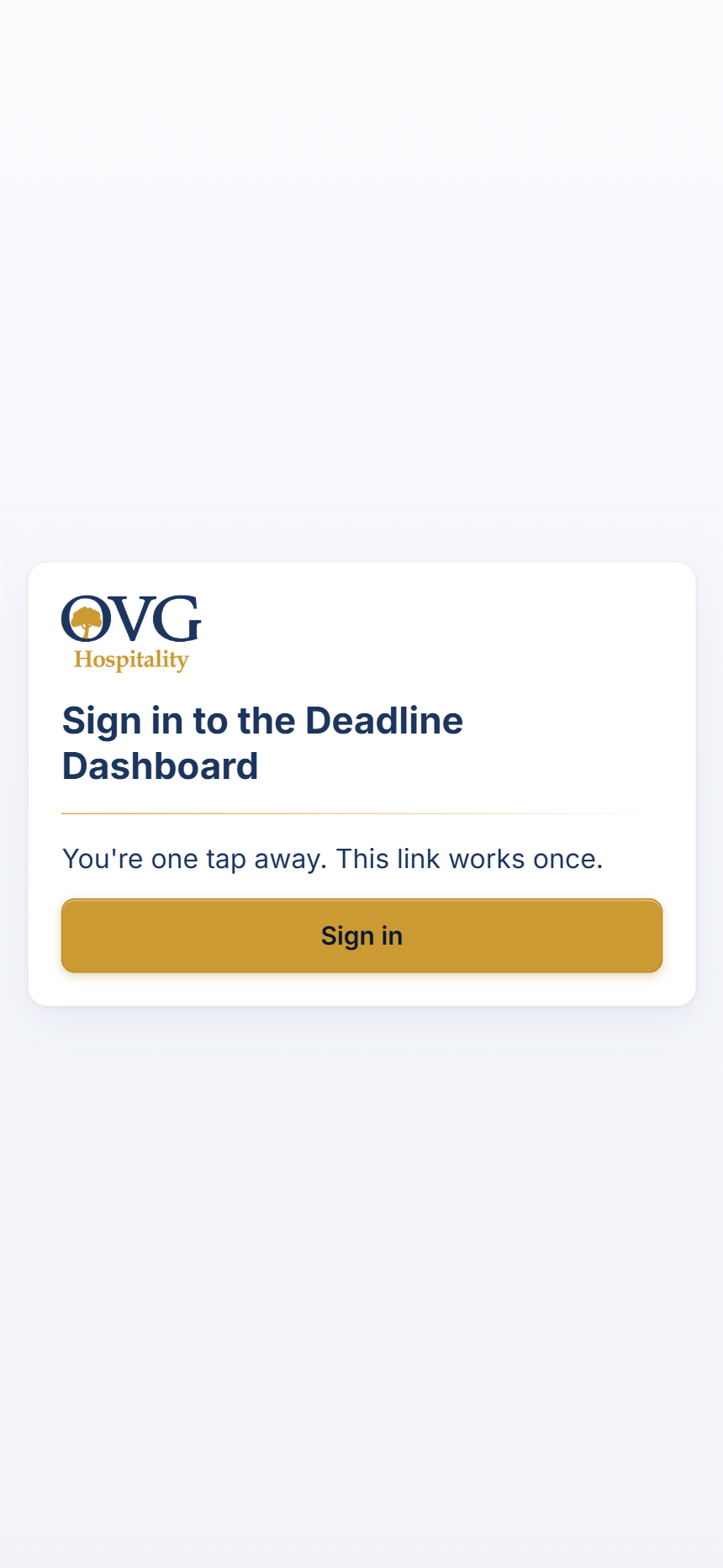
When you open the emailed link you get one more button that says Sign in.
That extra tap looks pointless but it isn't: the company's email scanner opens every link before you do, to check it's safe. Without that button the scanner would use up your sign-in link and you'd get "this link was already used" every single time. Looking at the page costs nothing; only pressing the button signs you in.
2 Your daily view
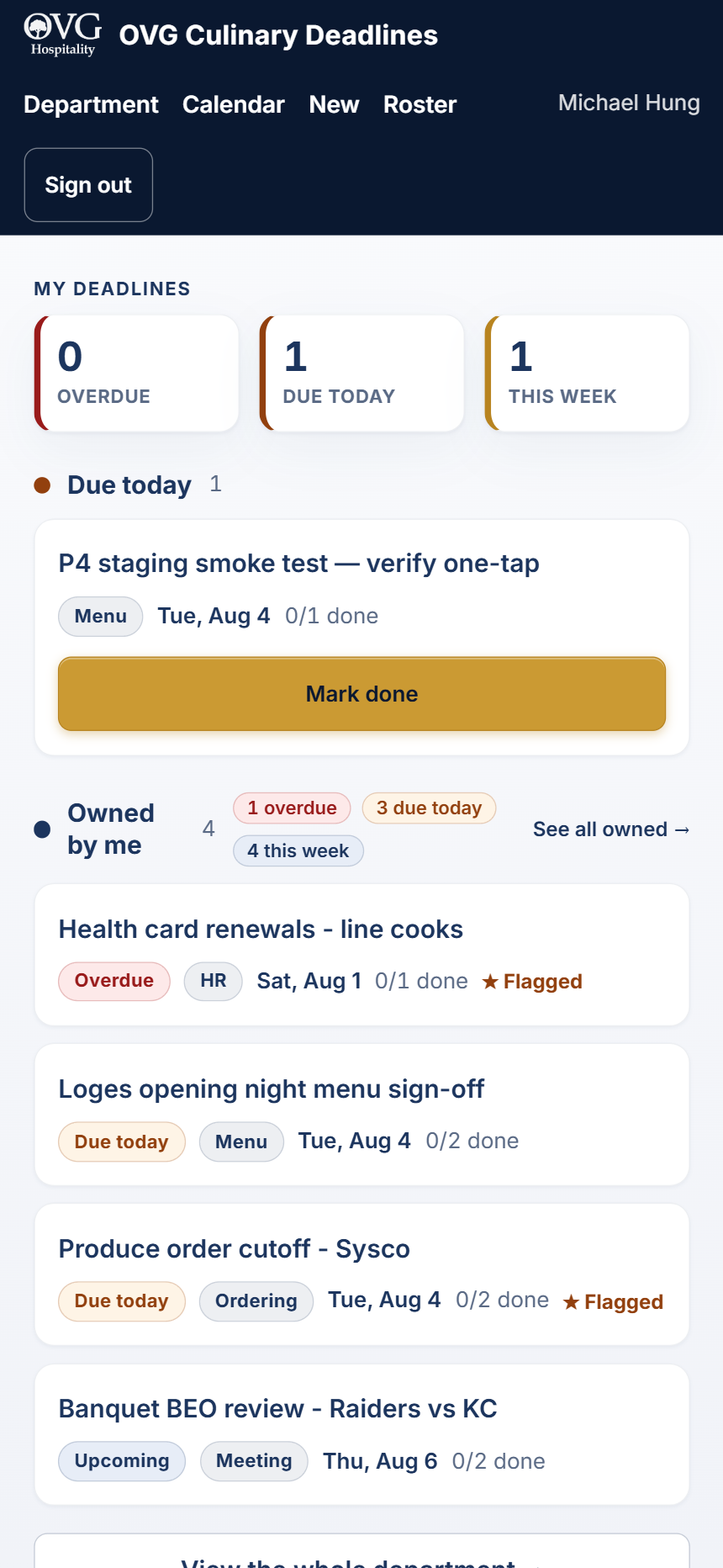
My deadlines is what you land on. It only shows what involves you.
- The three boxes at the top are Overdue, Due today and This week. Tap one to filter.
- Under that, anything assigned to you, with a gold Mark done button right on the card.
- Owned by me lists things you're responsible for even if someone else does the work.
Owner vs assignee. The owner is who's accountable. The assignees are who actually has to do it. One deadline can have several assignees — it's only finished when they've all marked their piece done, which is what "0/2 done" means.
3 Marking something done
There are two ways, and the first one is the one you'll actually use.
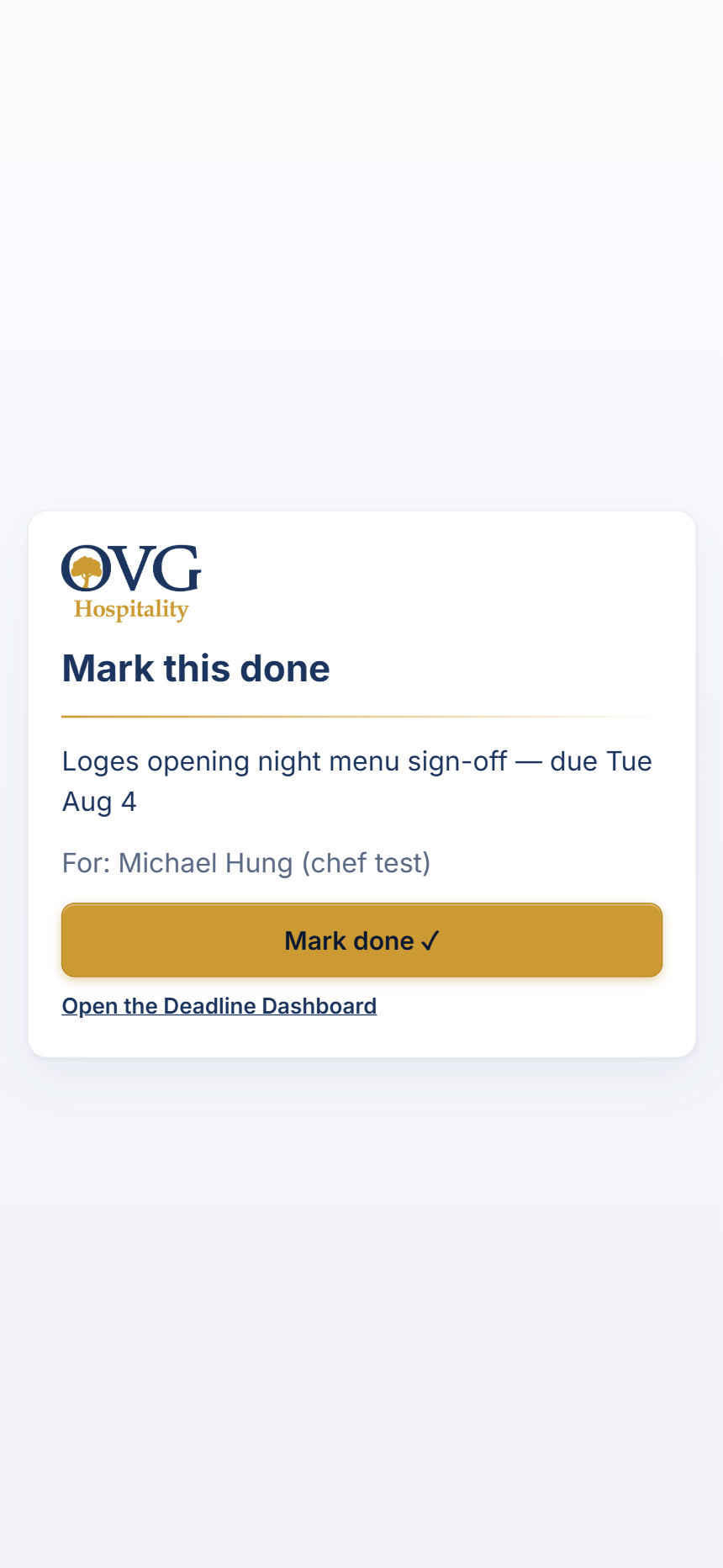
a) Straight from the email. Your morning email has a Mark done link next to each item. Tap it and you're finished — you don't have to sign in at all. This is the whole point of the app.
b) In the app. Open any deadline and tap Mark my piece done. Changed your mind? Un-mark my piece puts it back.
You can only mark your own piece. If a deadline is shared, the others still have to mark theirs. Chefs who own the deadline (and admins) can mark on someone else's behalf from the deadline page.
4 The emails you'll get
All of them come from deadline@ovgallegiant-tools.com. Add it to your contacts so it doesn't land in junk.
| When | What it is |
|---|---|
| 6:00 am, every day | Your list for the day — overdue first, then due today, then coming up. Only sent if you actually have something. |
| When you're added | "You've been assigned…" so nothing appears on your list as a surprise. |
| If a date moves | Tells you the date changed, so you're not working to the old one. |
| When something's late | A chase to you, and the owner gets told too. Once per late item, not daily nagging. |
| Friday | A week-ahead roundup so nothing sneaks up over the weekend. |
Emails never contain private detail. Notes you type on a deadline stay in the app, and HR items don't show their type in email. So an HR deadline is safe to have on the list — the email just says there's something to do.
5 Adding a deadline
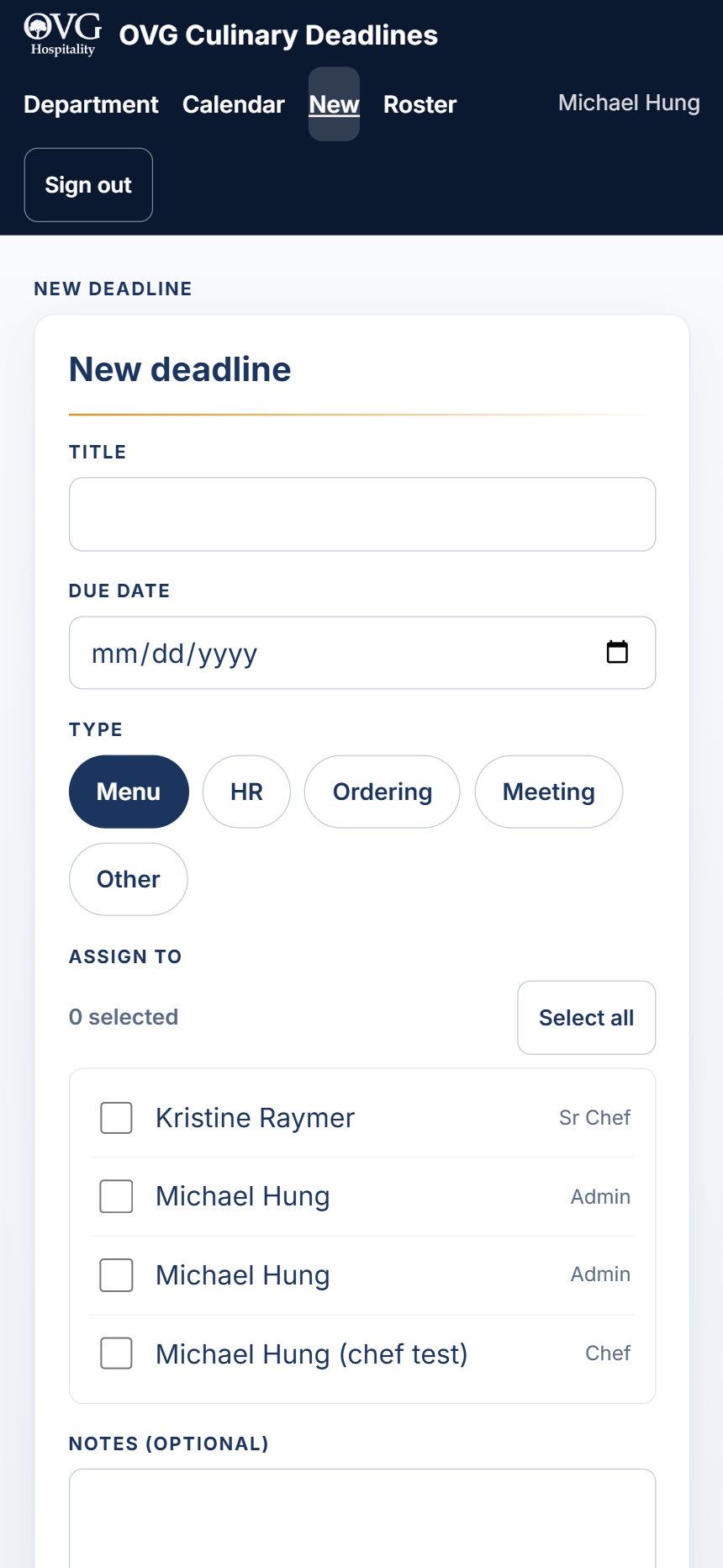
Tap New in the top bar. You need a title, a date and at least one person.
- Type — Menu, HR, Ordering, Meeting or Other. Only used for filtering.
- Assign to — tick everyone who has to act. Each person marks their own piece.
- Notes — anything useful. Stays in the app, never emailed.
- Flag for follow-up — tick this for the ones that genuinely matter. Flagged items get chased harder.
If someone already added the same thing, you'll get a warning with a Save anyway option. It's a nudge, not a block.
6 The department board
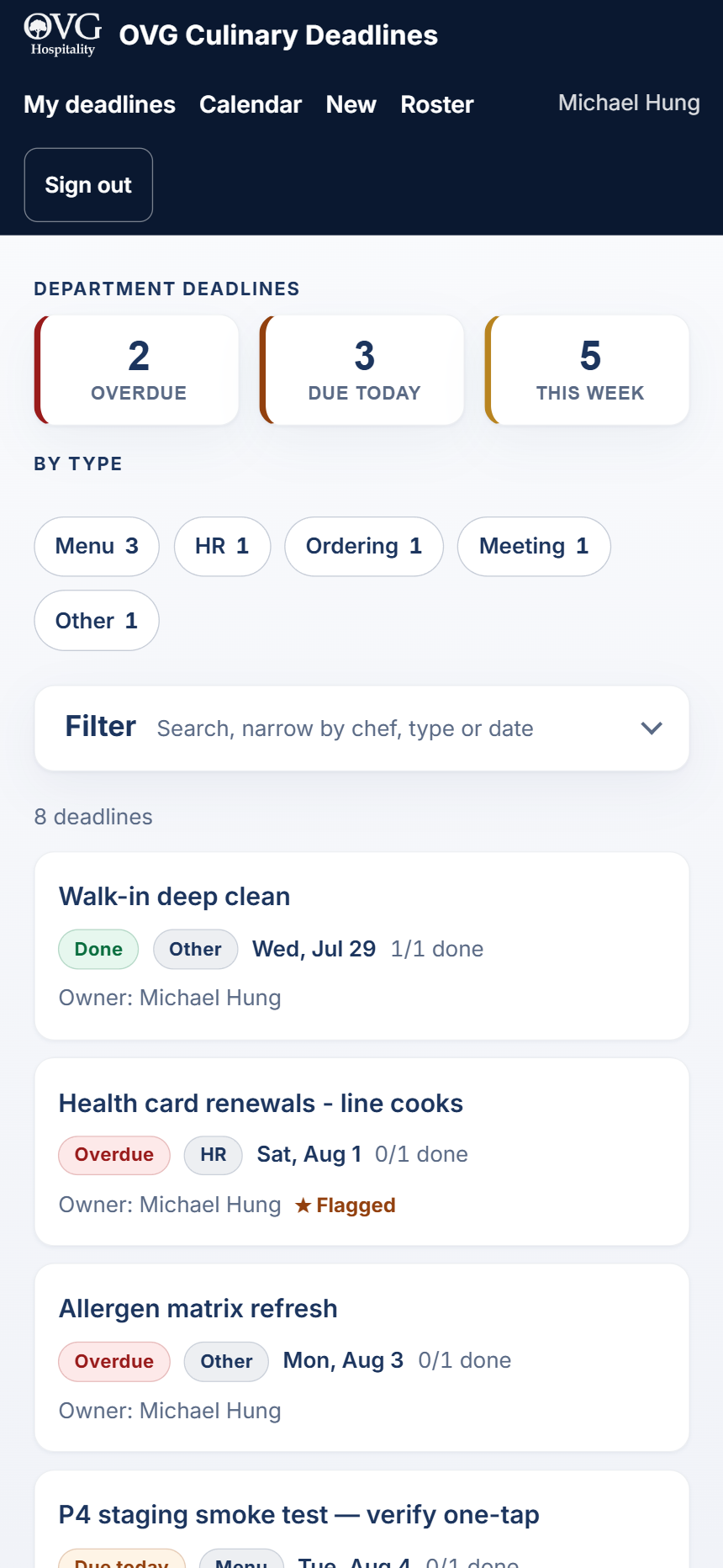
Department shows the whole kitchen's list.
Tap the Filter bar to open it. You can narrow by chef, type, status or date range, or search titles and notes. When a filter is on, the bar shows a gold edge and says how many — so a short list is never a mystery.
Print this list gives you a clean sheet for the pass or the office wall.
Overdue Due today Upcoming Done
7 One deadline, and the calendar
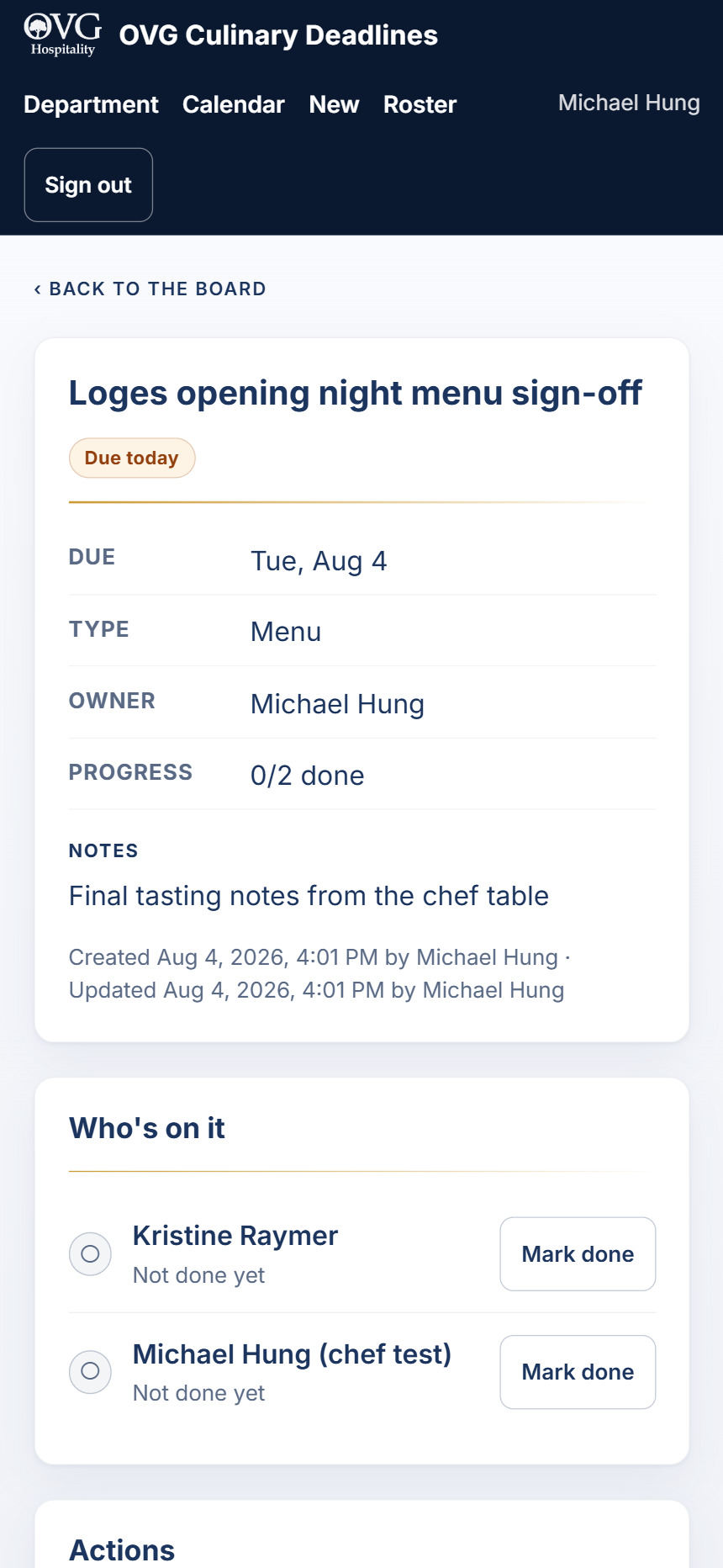
Tap any deadline to open it. You get the date, type, owner, progress, the notes, and Who's on it — every person and whether they've finished.
Actions at the bottom: edit it, flag it, or cancel it. Cancelling keeps the record and stops the chasing — nothing is ever really deleted, so you can always see what happened.
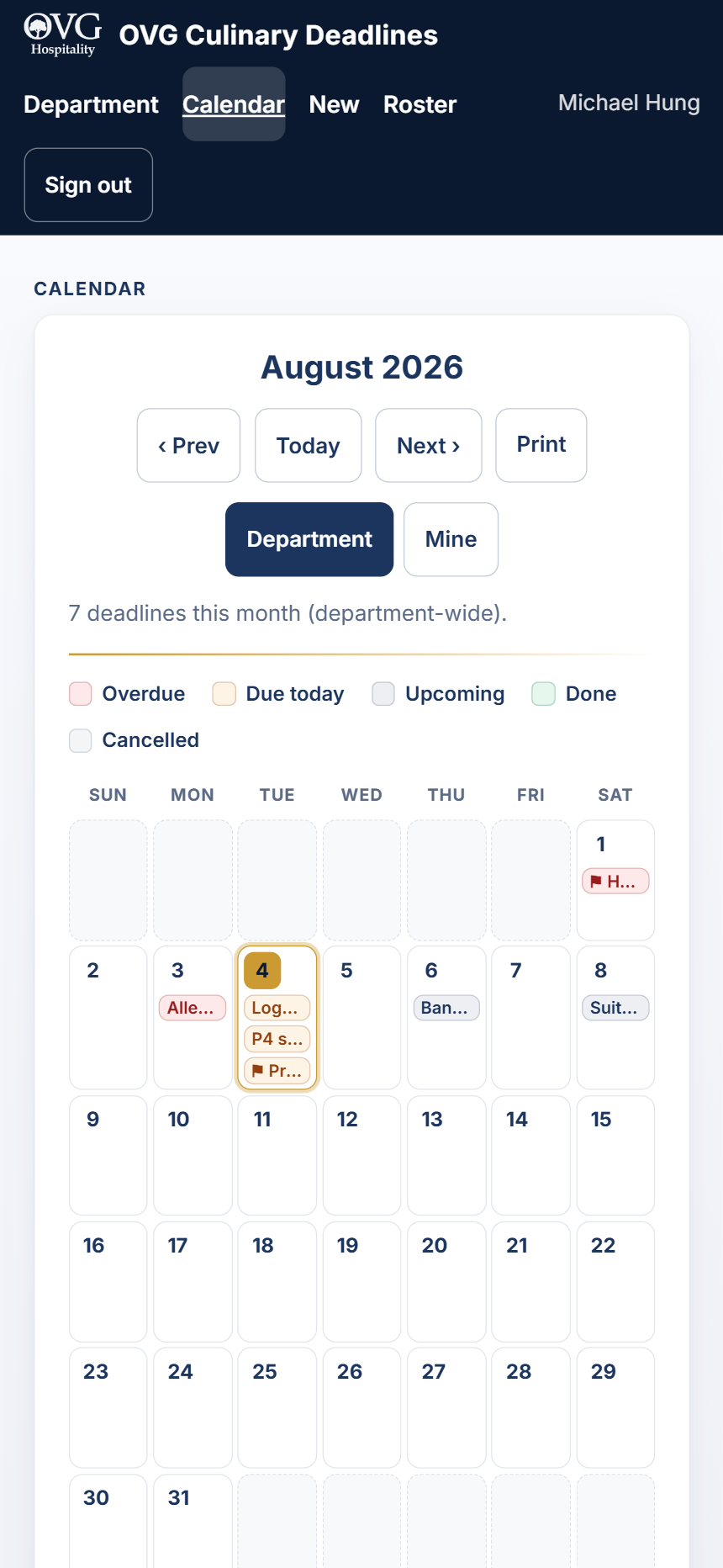
Calendar shows the month laid out. Red is overdue, amber is due today, grey is coming up, green is done. Tap a day to see what's on it.
8 The roster Admin only
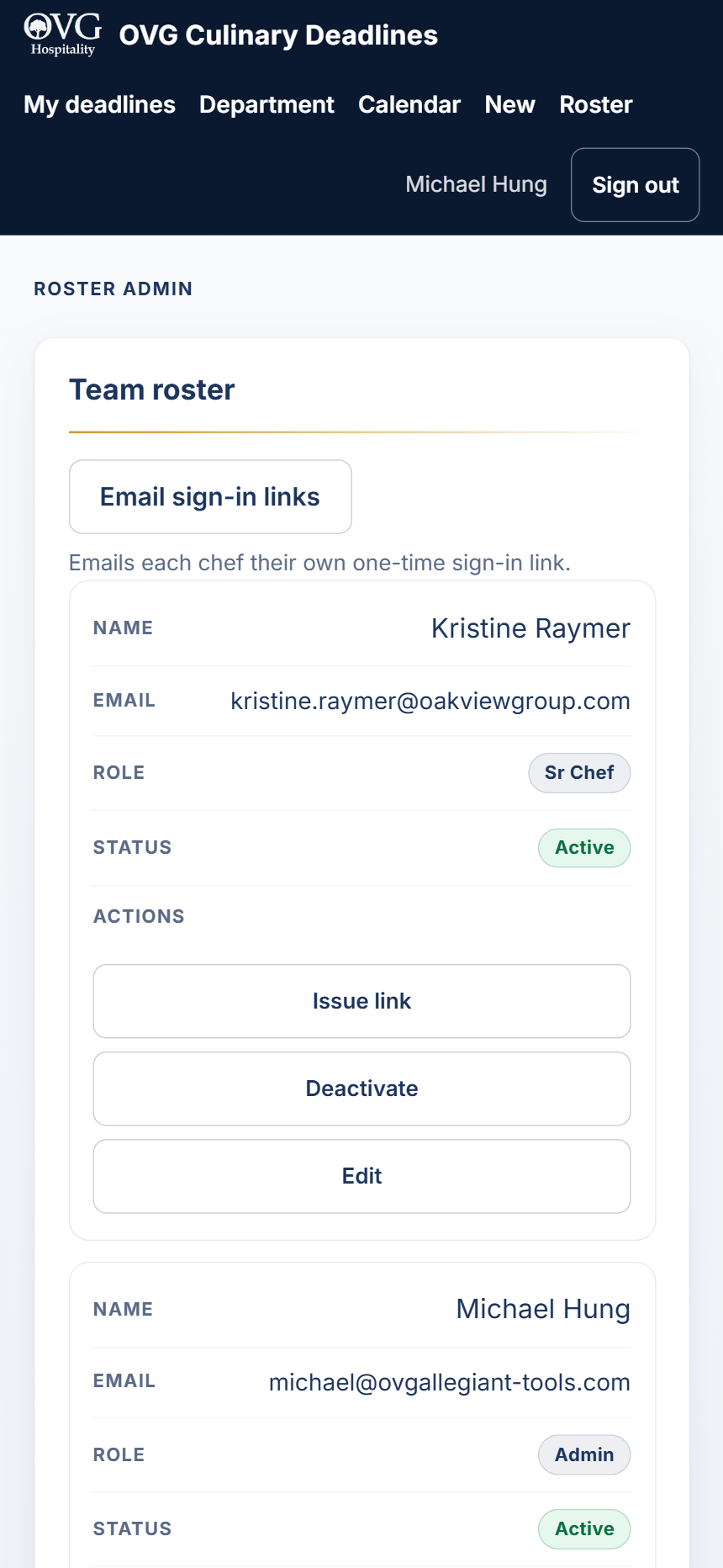
Roster is where people are added. Name, work email, and a role:
- Chef — sees the board, marks their own work done.
- Sr Chef — can also create deadlines and assign people.
- Admin — all of that, plus the roster.
New people get a welcome email with their own sign-in link automatically. Bulk add takes a pasted list if you're setting up a whole brigade.
When someone leaves, deactivate — don't delete. The app will make you hand their open work to someone else first, so nothing silently falls off the list. They're signed out immediately and their old links stop working.
9 When something isn't working
| What you see | What's happening |
|---|---|
| Said "check your email", nothing arrived | Almost always the address. It must match the roster exactly — check the confirmation screen against your own address. Then check junk. Then check you haven't asked 5+ times in an hour. |
| "This link has expired" | Sign-in links last 30 minutes. Request another. |
| "This link was already used" | They work once. Request another. |
| A deadline vanished from my list | Someone marked it done or cancelled it. Open Department and clear the filters — cancelled and done items are still there. |
| I can't see New or Roster | Those are by role. Chefs don't get them. Ask an admin. |
| A red bar across the top | The system is having trouble sending email. The app still works and the list is still right — people just aren't being chased. Tell Michael. |
Nothing you do here is destructive. Done can be un-done, cancelled can be reopened, and every change records who made it and when. You can't break it by exploring.
Questions, or something's wrong that isn't on this page — tell Michael.